¶ Tools and Materials
-
A 2.0 mm Allen key
-
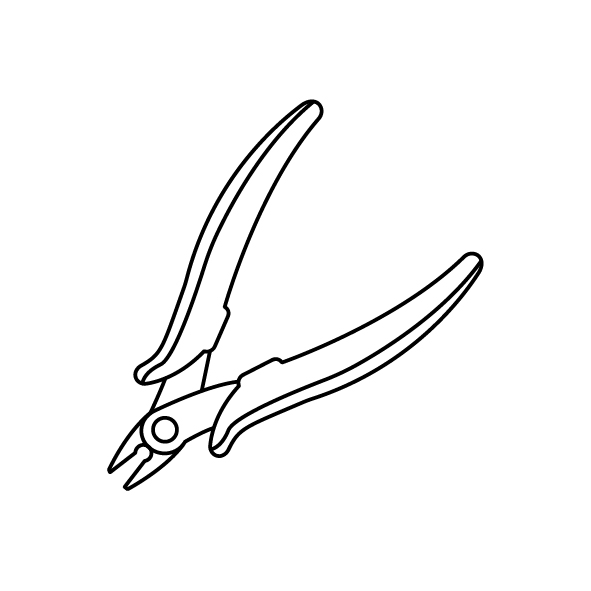
A pair of pliers
-
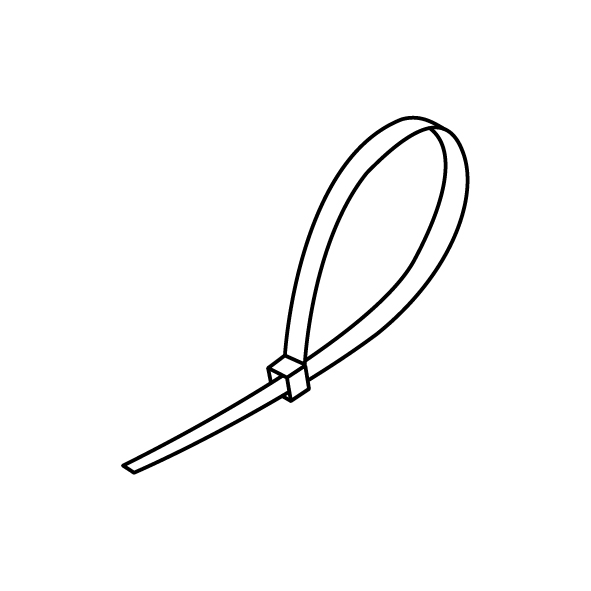
Cable ties
-
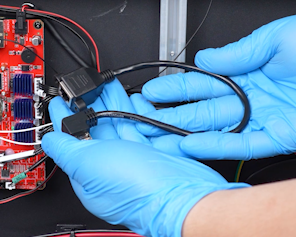
A new network extension cable
¶ Instruction
¶ Preparation
Turn the power switch OFF (symbol "〇") and unplug the power supply cable.
¶ Remove the old network extension cable
-
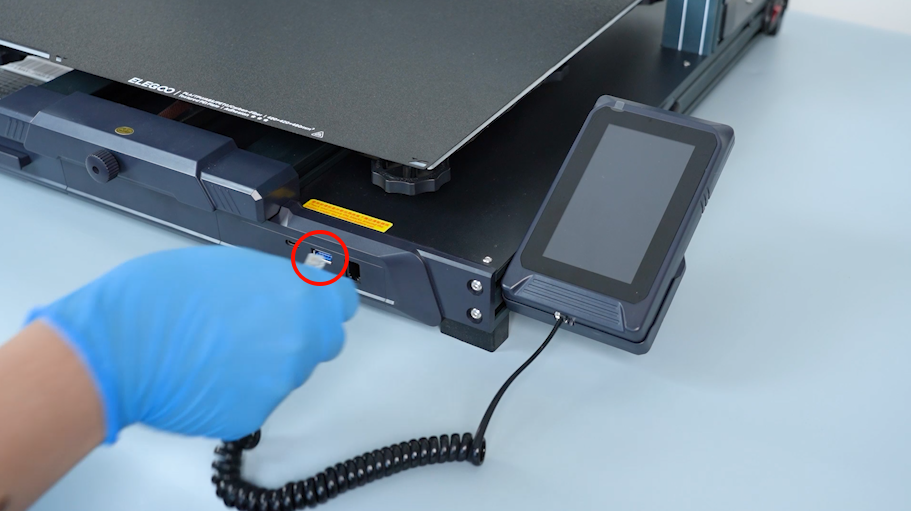
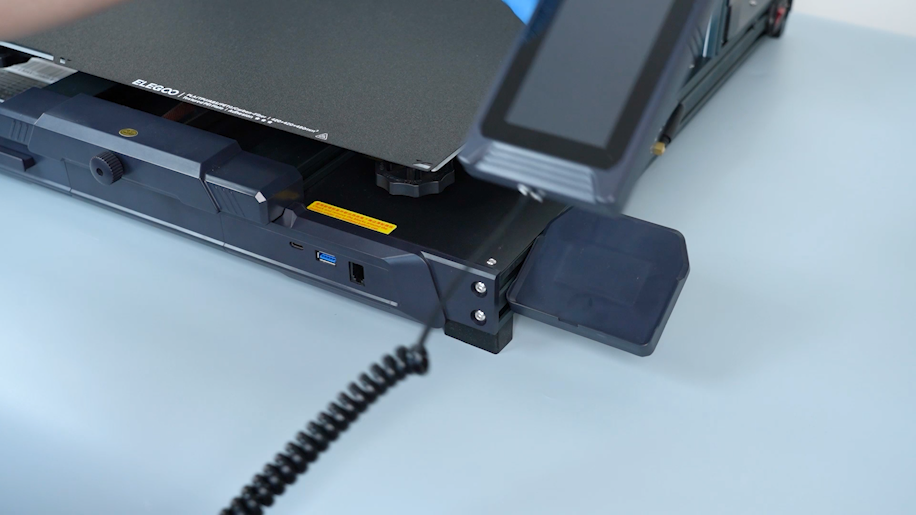
Unplug the connection wire of the touch screen and remove the touch screen.
-
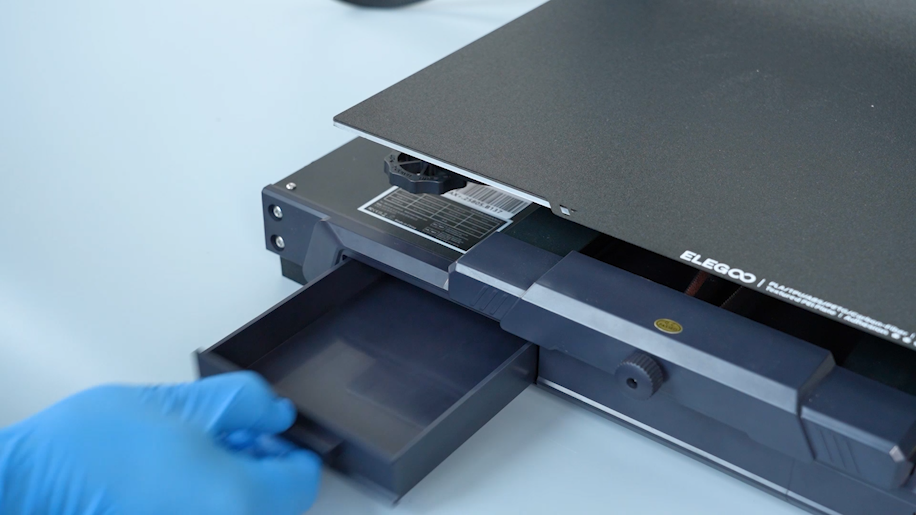
Remove the tool drawer.
-
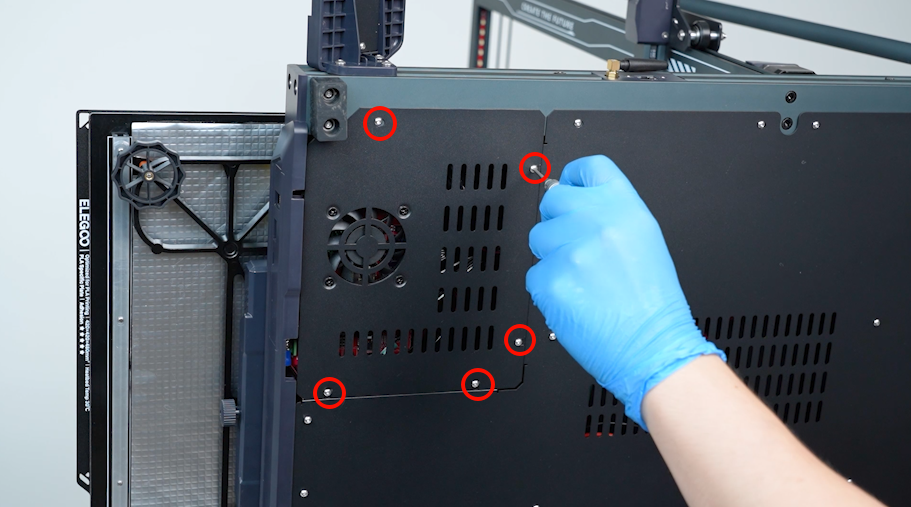
Release and remove the screws securing the motherboard cover with a 2.0 mm Allen key.
-
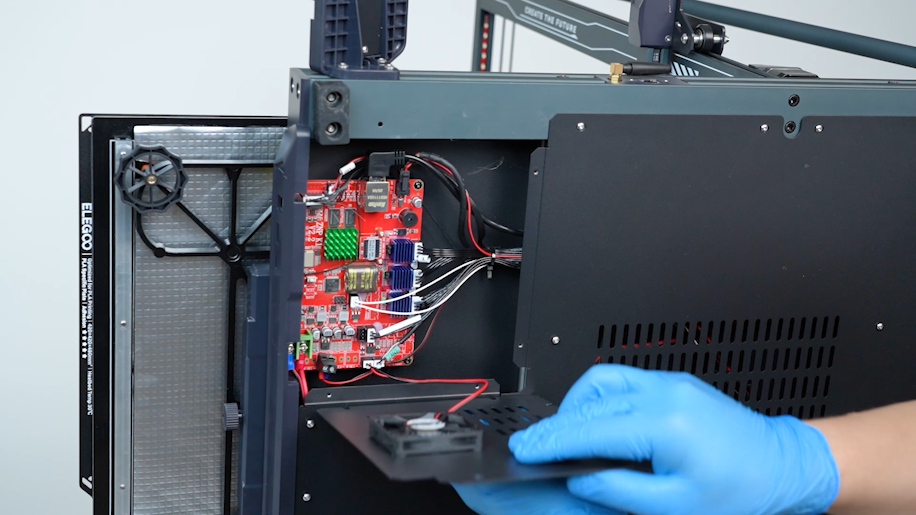
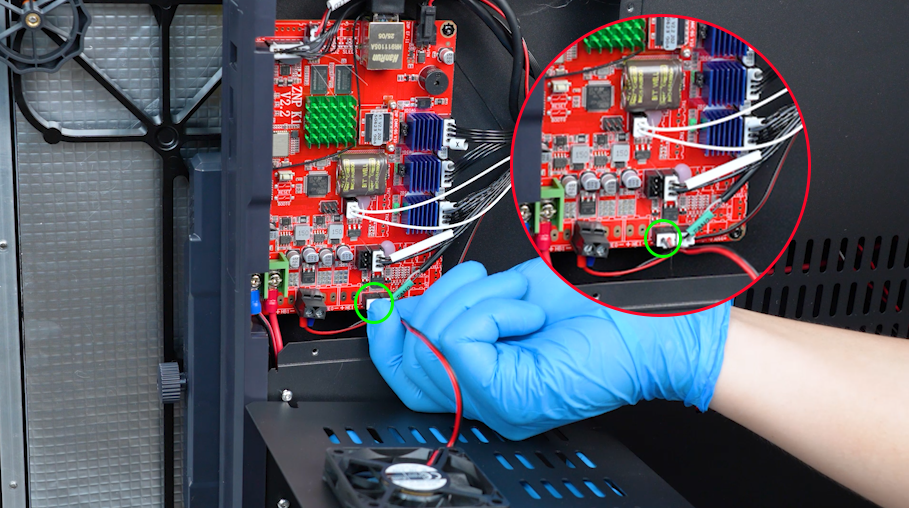
Remove the bottom cover carefully. Disconnect the cable of the motherboard cooling fan.
-
Release and remove the screws securing the bottom cover. Hold the bottom cover and remove it with a 2.0 mm Allen key.
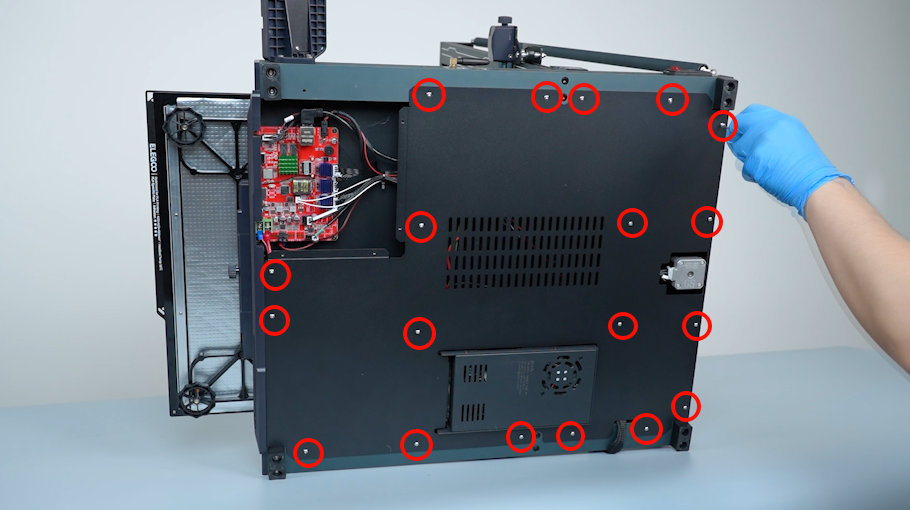
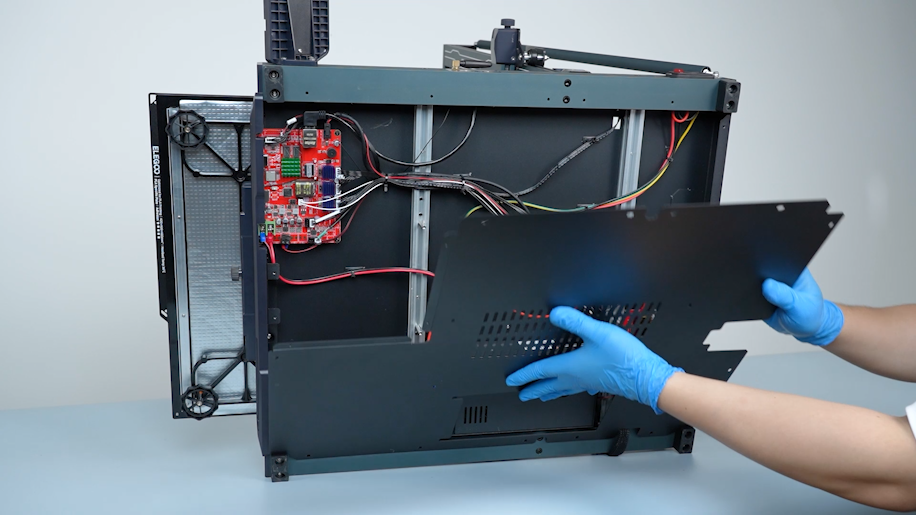
-
Release and remove the two screws securing the port of the network extension cable with a 2.0 mm Allen key.
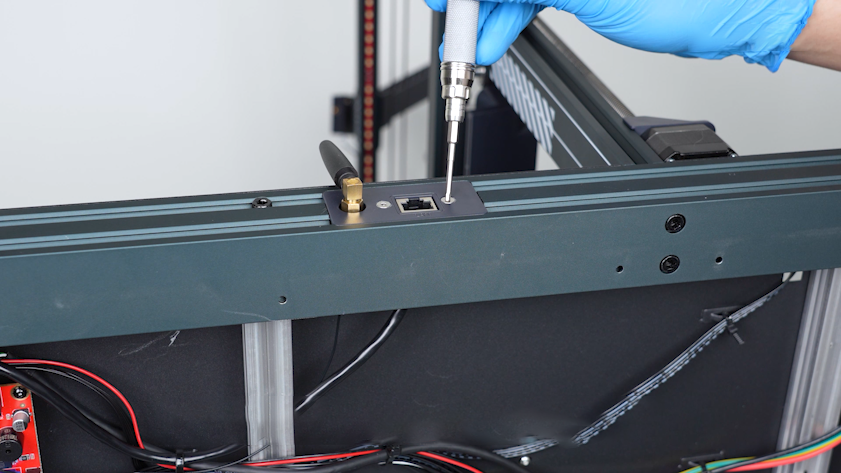
-
Cut off the cable ties with a pair of pliers.
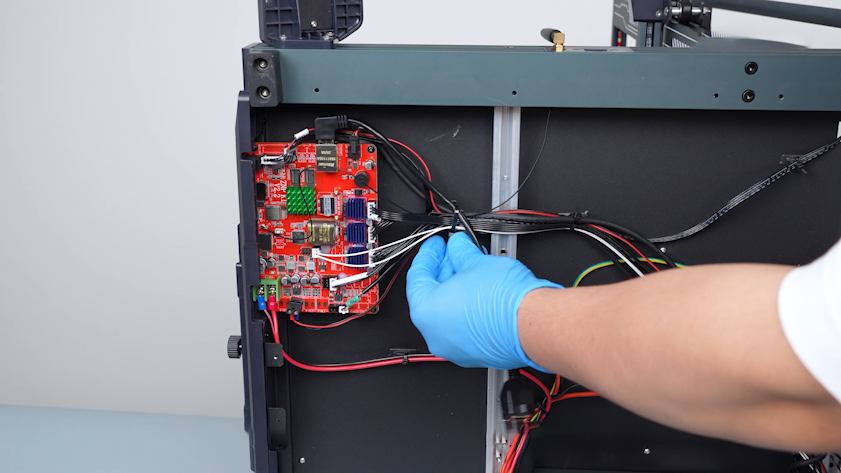
-
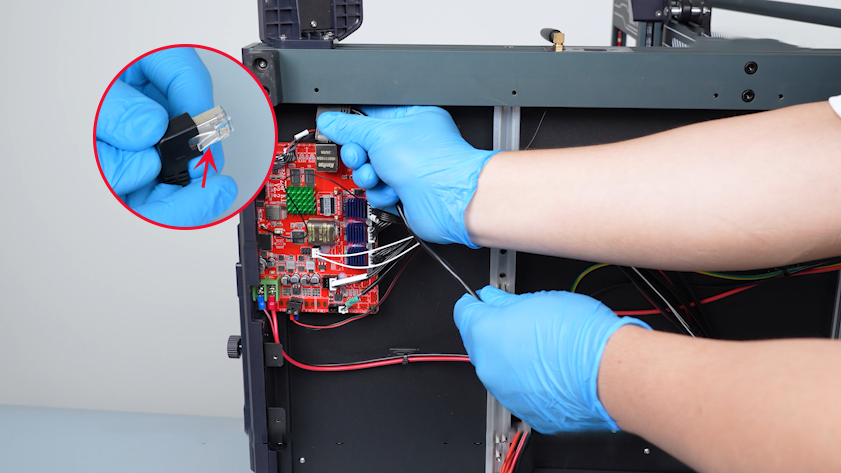
Press the clip with your fingers and unplug the network extension cable.
Note: The clip is attached to the back of the network extension cable.
¶ Install the new network extension cable
-
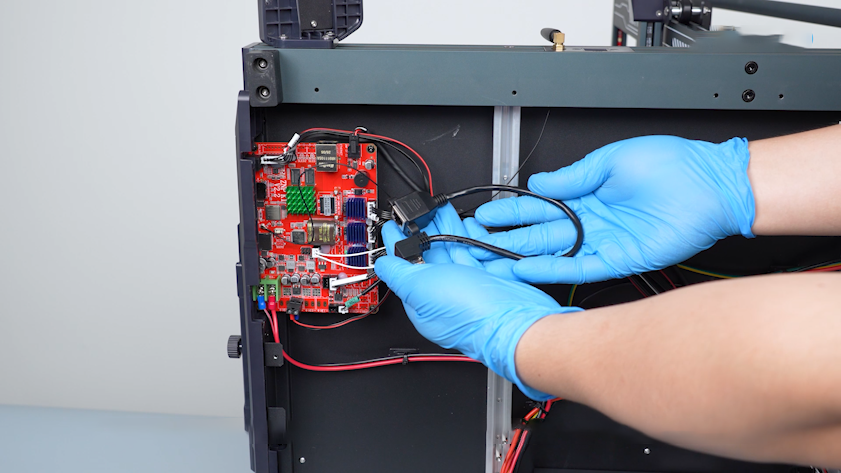
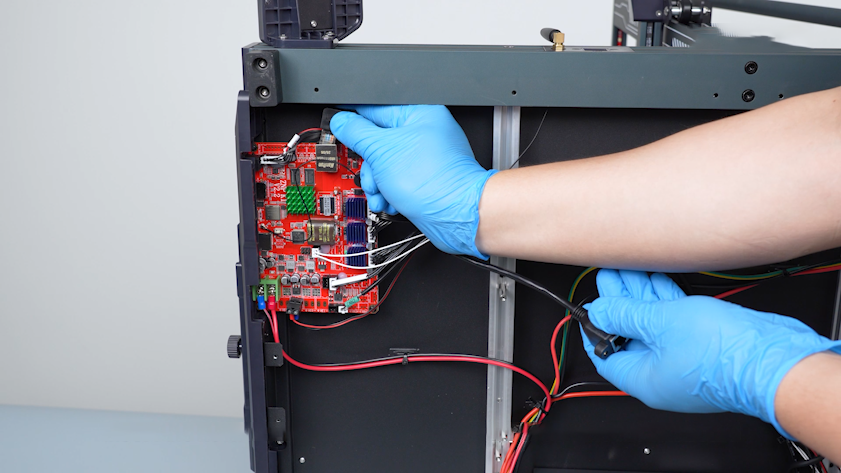
Get the new network extension cable and insert it into the port on the motherboard.
-
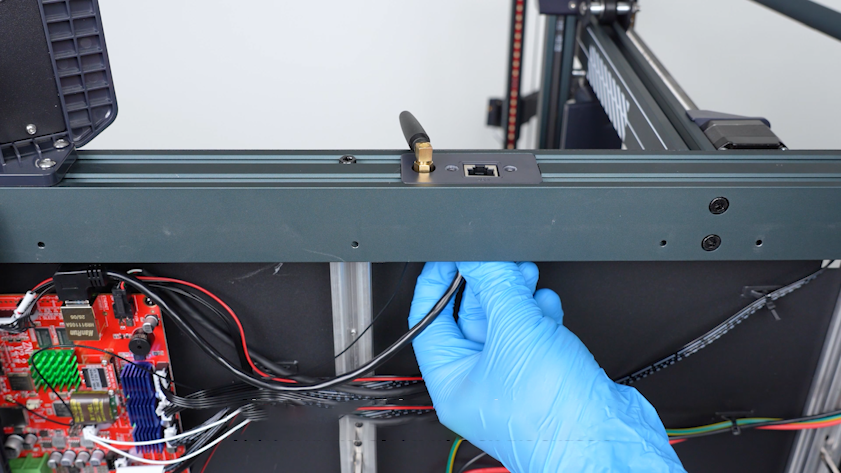
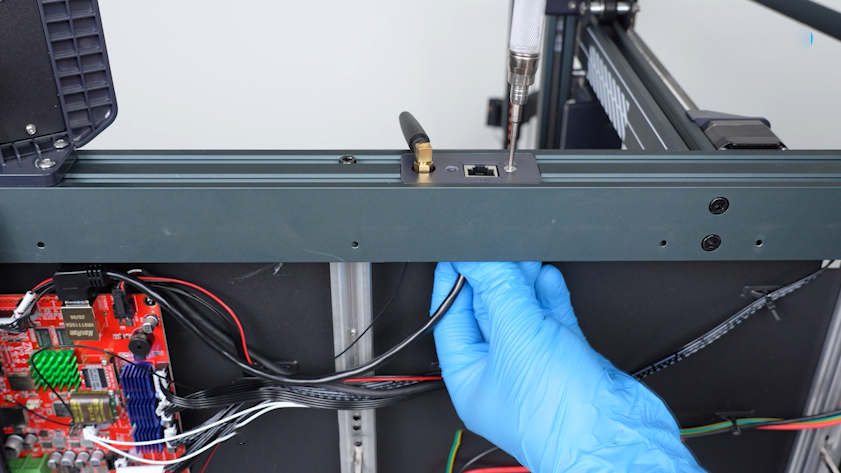
Align the port of the network extension cable with the screw hole on the chassis. Put the screws into the holes. Tighten the screws with a 2.0 mm Allen key.
-
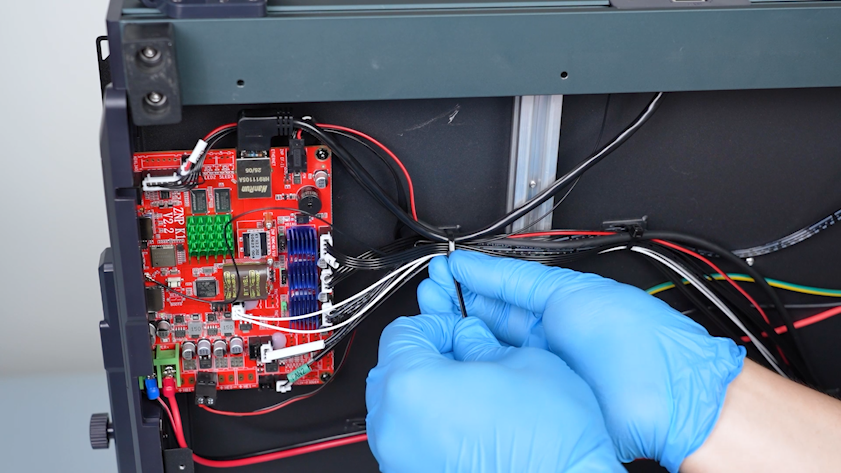
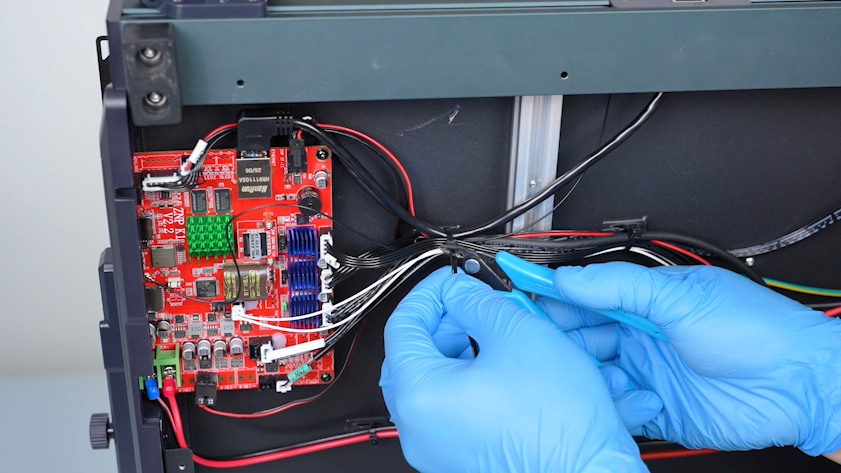
Secure the network extension cable and other wires on the chamber with cable ties. After securing the cable and wires, cut off the ends of the cable ties.
-
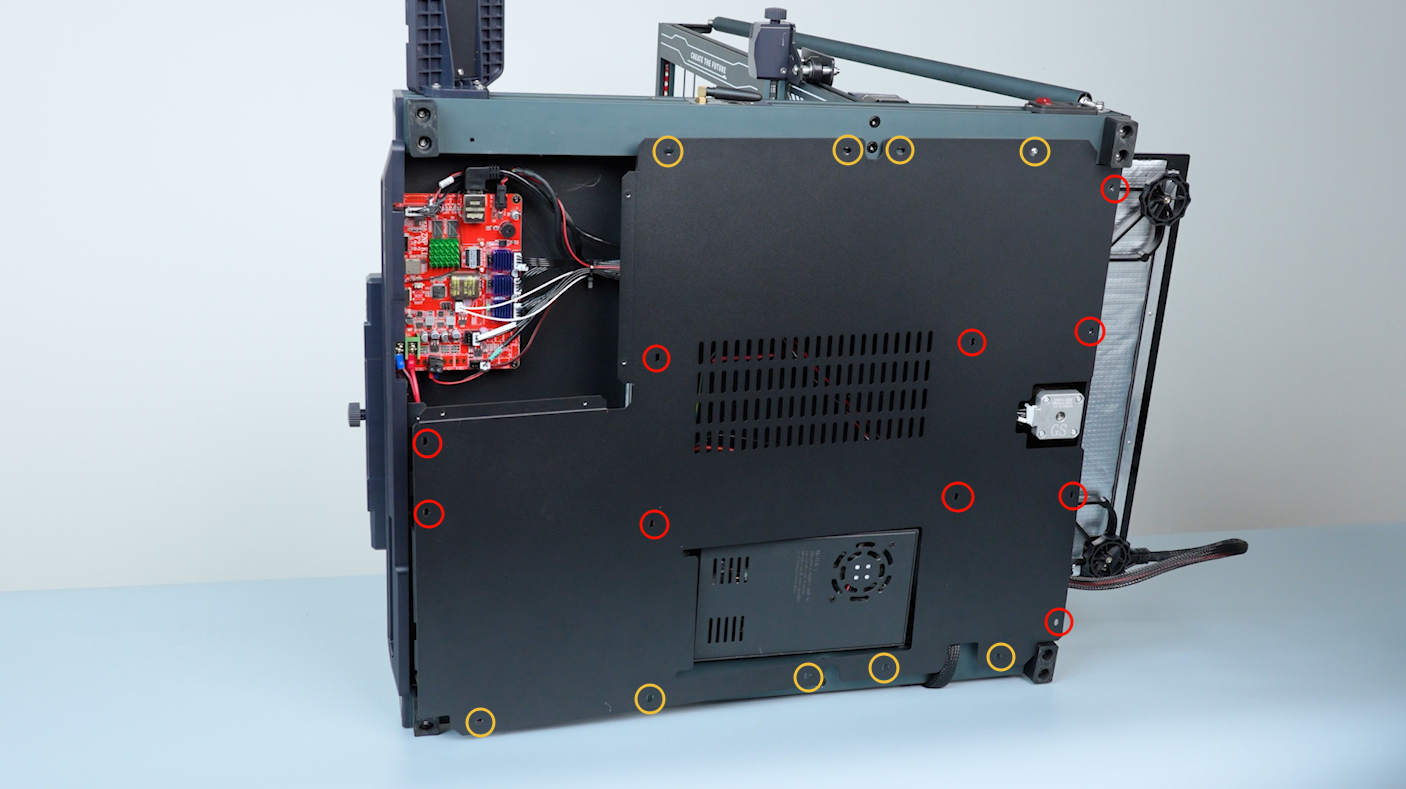
Get the bottom cover and hold it. Tighten the screws securing the bottom cover with a 2.0 mm Allen key.
Note: Screws labeled by the red circle are M3 x 6, and screws labeled by the yellow circle are M3 x 16.
-
Get the motherboard cover. Plug in the cable of the motherboard cooling fan.
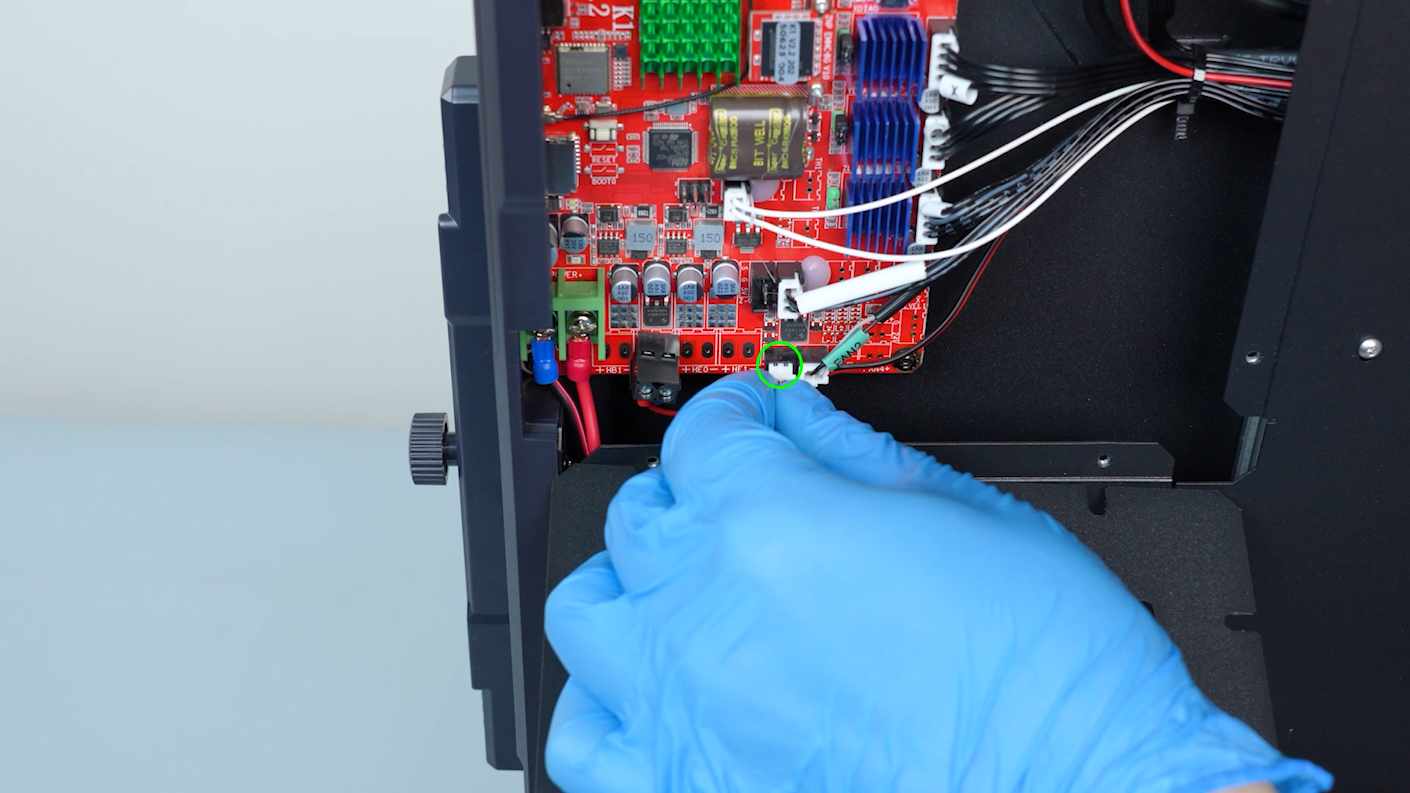
-
Tighten the screws securing the motherboard cover with a 2.0 mm Allen key.
Note: Screws labeled by the red circle are M3 x 6, and screws labeled by the yellow circle are M3 x 16.
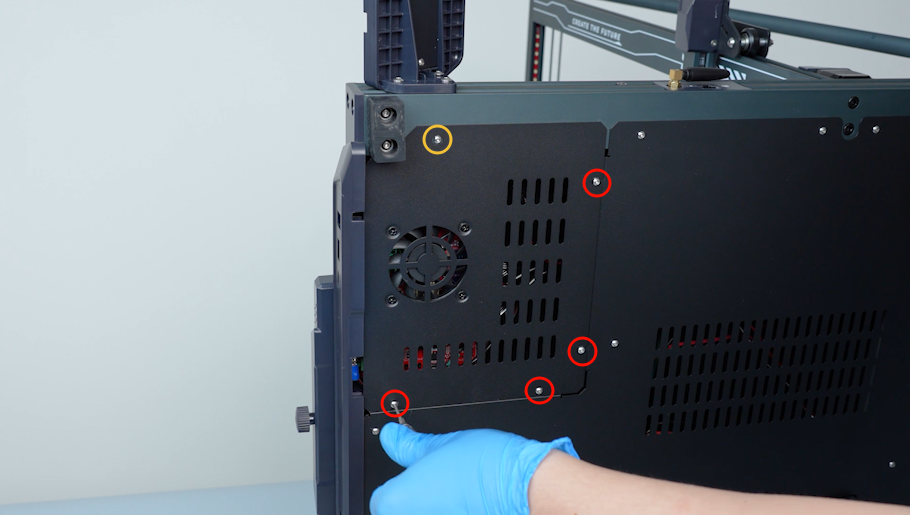
-
Install the tool drawer.
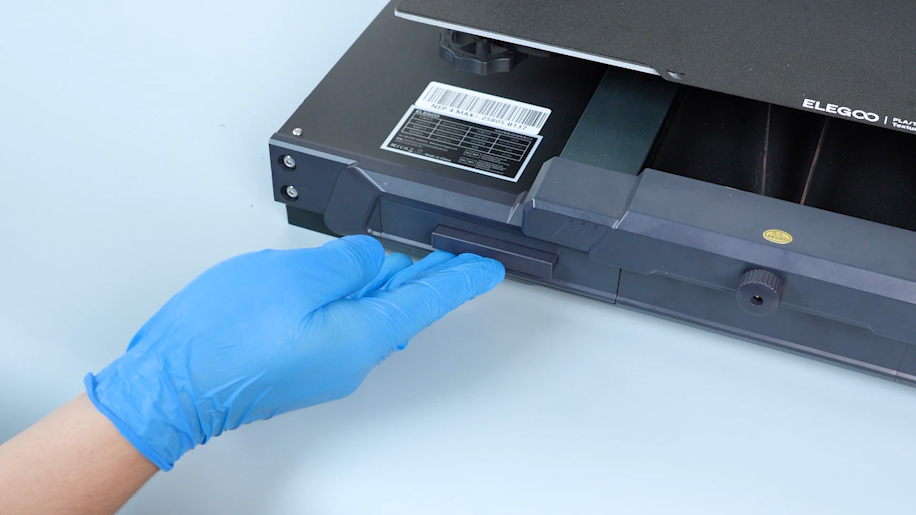
-
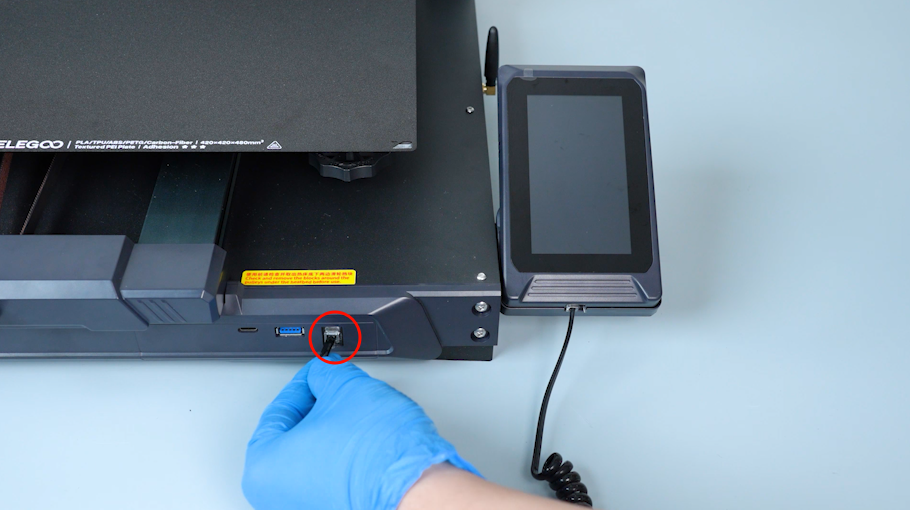
Put the touch screen on the bracket and plug in the connection wire.
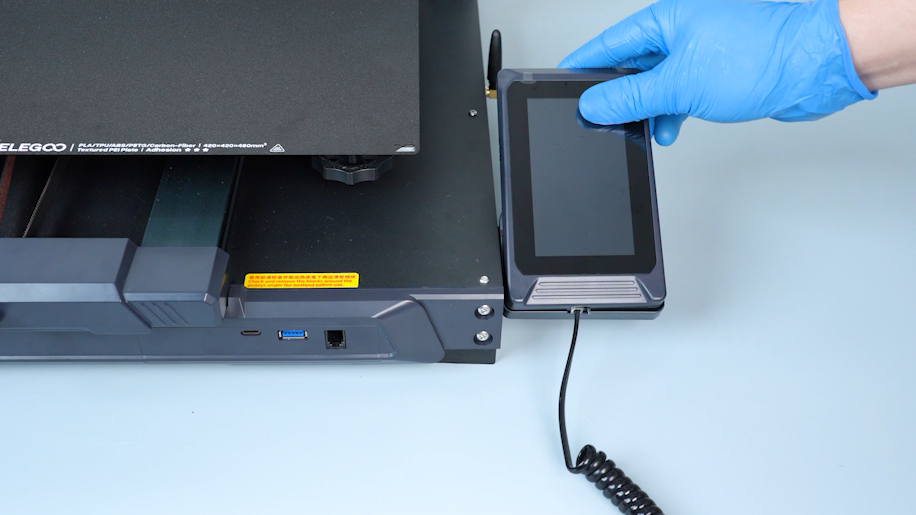
¶ Verification
-
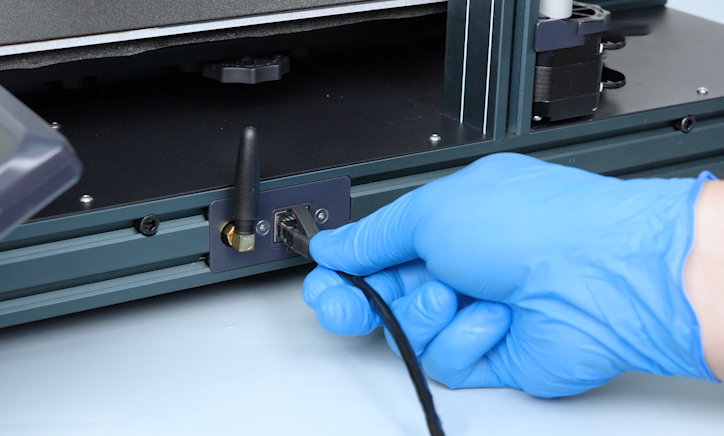
Insert one end of the network cable into the network port and the other end into the router. Make sure that your printer is connected to the same network as your PC.
-
Plug in the power supply cable and turn the power switch ON (symbol "|").
-
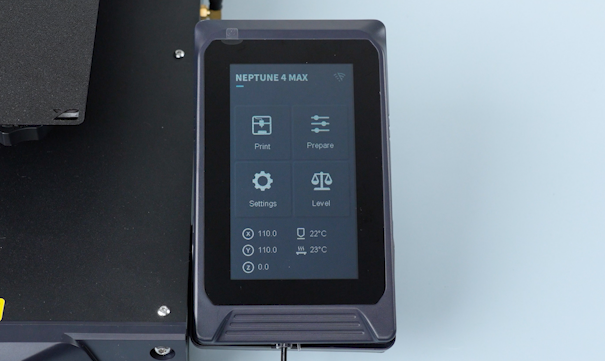
On the touch screen, select Setting - About machine - IP address.
-
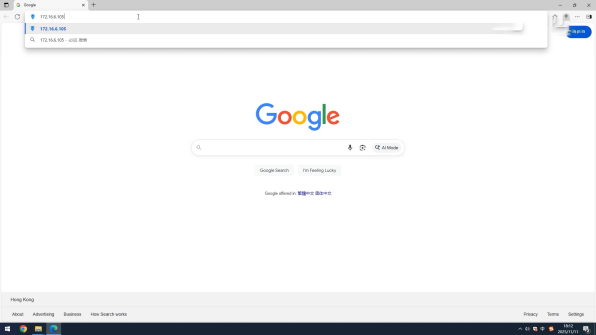
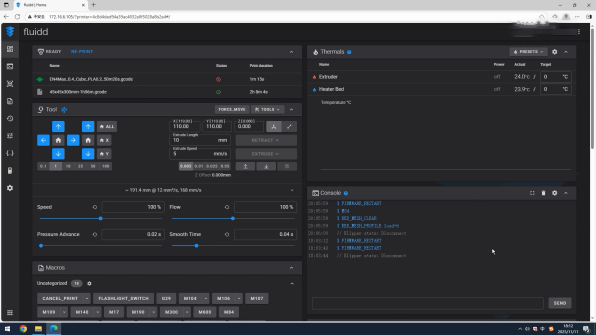
Enter the IP address displayed on the touch screen into the browser. The printer is ready for use after the Fluidd web is accessible.